Connecting a Device
Most tasks in LTBox only work while a device is connected. This page shows how to set up the drivers and connect your tablet.
01 / Drivers
Install the Qualcomm USB drivers (Windows)
LTBox can use either the kernel or the userspace Qualcomm USB driver, selectable in Settings → Qualcomm USB driver. Windows defaults to the kernel driver — the same one QFIL uses, so you can switch between the two tools without reinstalling. If the selected driver is missing, the dashboard shows a driver banner.
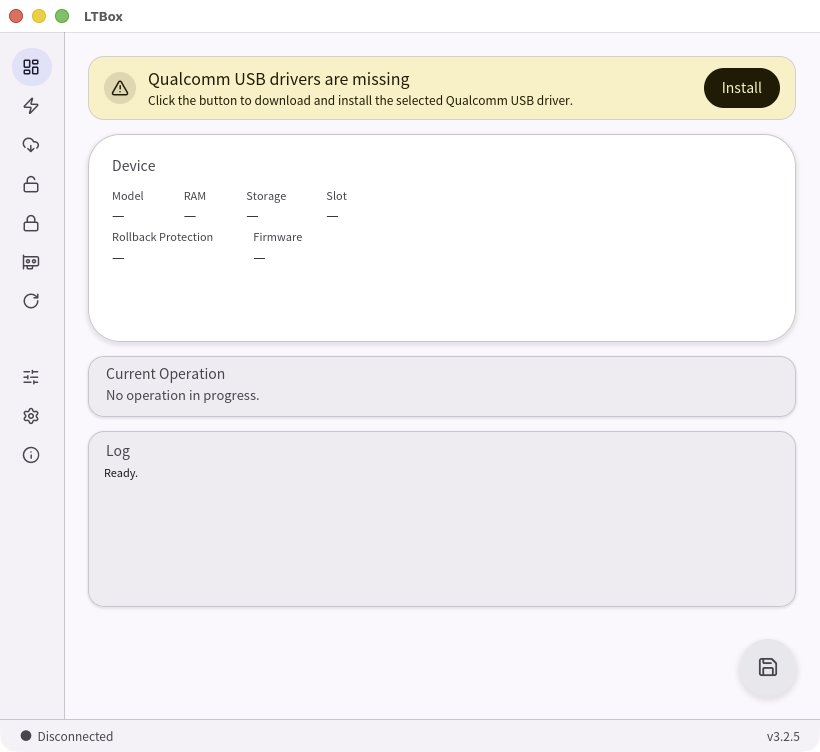
- Click the Install button.
- LTBox downloads and installs the matching official release — qualcomm/qcom-usb-kernel-drivers for kernel mode, qualcomm/qcom-usb-userspace-drivers for userspace mode — and runs its installer (approve the Windows UAC prompt).
- When the log says the install finished, reboot your PC once. This is recommended.
02 / Connect
Connect the device
- On the tablet, open Developer options and turn on USB debugging.
- Connect the tablet to your PC and start LTBox.
- When the Allow USB debugging pop-up appears on the tablet, tap Allow.
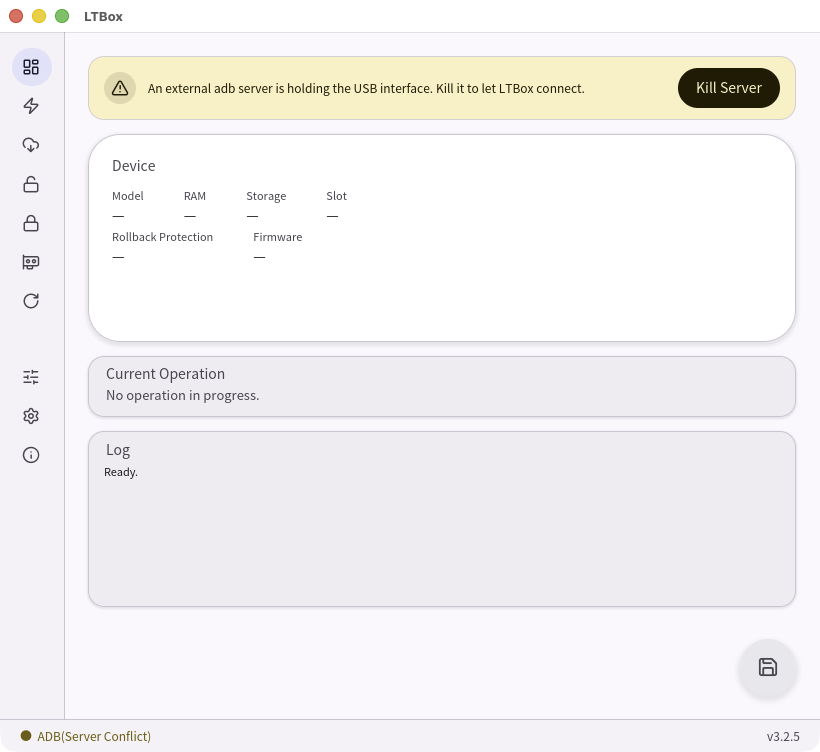
If you see an adb server conflict
If the dashboard shows:
An external adb server is holding the USB interface. Kill it to let LTBox connect.
Click the Kill Server button next to the message. This stops the other adb server so LTBox can take over the USB connection.
03 / Confirm
Confirm the connection
When the dashboard shows your device information (Model, RAM, Storage, Slot, Rollback Protection, Firmware), the device is connected.
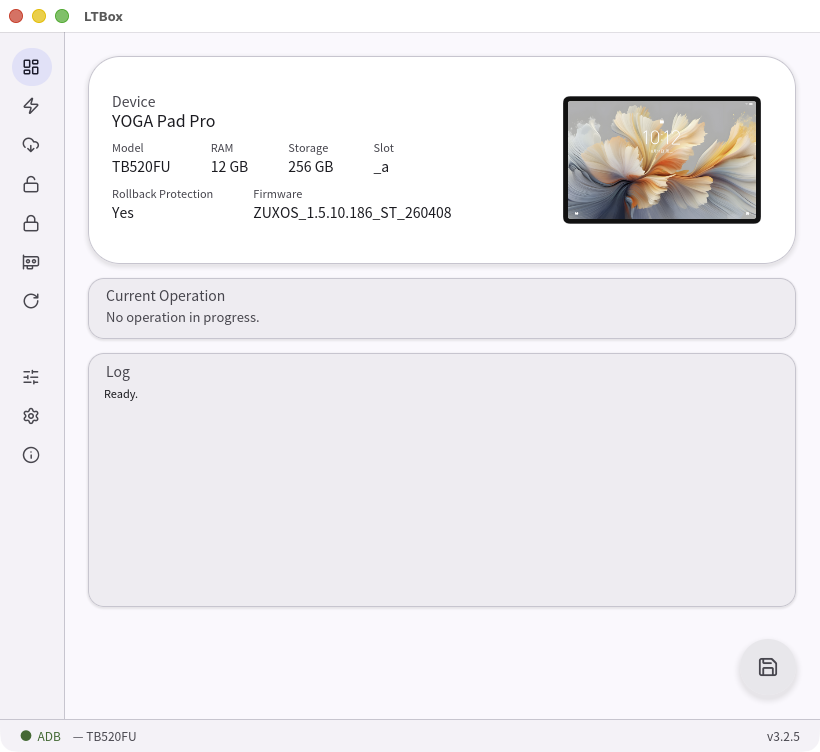
The status indicator at the bottom-left corner shows the current connection mode (for example ADB, Bootloader, or EDL).
Bootloader mode also shows device information on the dashboard. EDL mode does not show device information — check the status indicator at the bottom-left instead.